Showing posts with label HTML. Show all posts

Giveaway: Adsense AD code converter Plugin for Blogger

If you want to add Adsense Ad units or any other ad scripts inside the Blogger Template or anywhere in the Blog, You can't directly Paste it in the template code. You need to first convert the code and make it Blogger Template friendly!
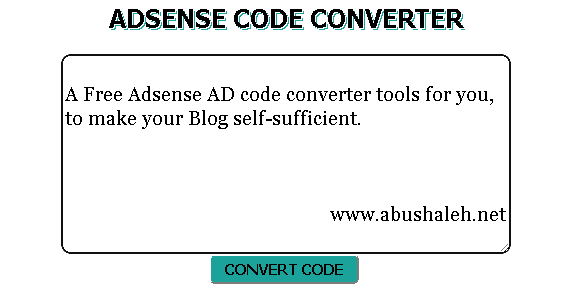
Adsense AD code converter script
This tool automatically converts AD codes into the correct format so you can embed it directly into your xml Blogger template. It is perfect for converting AdSense, Chitika or any other AD codes you may have.

In this post I have this tool free for you and your Blogger/blogspot Blog, to make your Blog self-sufficient. This Plugin is ~2kb created using Javascript, HTML and Embeded CSS.

Install this Plugin in your Blog

First Create a Blank Page in your Blogger Blog Than Go to HTML mood and just Paste the codes below-

<script type="text/javascript">
function convert(){var ele1=document.getElementById("somewhere");var replaced;replaced=ele1.value;replaced=replaced.replace(/</ig,"&lt;");replaced=replaced.replace(/>/ig,"&gt;");replaced=replaced.replace(/"/ig,"&quot;");replaced=replaced.replace(/&#177;/ig,"&plusmn;");replaced=replaced.replace(/&#169;/ig,"&copy;");replaced=replaced.replace(/&#174;/ig,"&reg;");replaced=replaced.replace(/howdy/ig,"ya'll");ele1.value=replaced}
</script>
<center><span style="font: Bold 25px Tahoma; margin: 0px; padding: 0px; text-shadow: 0.04em 0.04em #fff,  0.08em 0.08em #1ba29a;">ADSENSE CODE CONVERTER</span><br/>
<table border="0" cellpadding="0" cellspacing="1" style="width: 450px;"><tbody>
<tr><td><br />
<textarea id="somewhere" style="border: 2px solid #111; border-radius: 10px; height: 200px; width: 450px; outline:0; font: 12px Georgia"></textarea><br /></center><center>
<input onclick="convert();" type="button" value="CONVERT CODE" style="height: 30px; width: 150px; font: Bold 15px Tahoma; background-color: #1ba29a; border-radius: 5px;"/>
<br /></center></td></tr></tbody></table></form></center>

Save the Page and Done! Now you can convert your AD codes by going to the page easily when you want :)

Copyright

This Blogger Plugin is fully yours! I did not reserved any copyrights of this script. If you like this don't forget to thanks us, it really Helps. Smile :)

This Tool is for only converting AD codes. For Bigger Scripts use Online Code Encoder. To view this script or any other scripts DEMO or real time work use Online Code Editor.

Continue Reading »

Make a Dropdown labels widget in Blogger


A labels widget displays your post labels. Each label is linked to a page containing posts which fall under that label. Usually as your posts increases, so will your labels. If you don’t limit them, sooner or later your labels widget will take over your sidebar.

Regain control of your sidebar, shrink the widget -by converting it into a dropdown (or is it a pulldown?) menu. Your labels widget size will be reduced to just one line! And only expand into a full list when you click it.

Before applying this Trick, you must already have a Label widget installed.
If you don’t have one, go to Design > Page Elements and add it.

Now let’s make the dropdown :


1. Go to Dashboard > Design > Edit HTML.
2. Back up your template.
3. Make sure you DO NOT tick the Expand Widget Templates checkbox.
4. Look for the following lines in your HTML code:

<b:widget id='Label1' locked='false' title='Labels' type='Label'/>

Replace that line with this code:

<b:widget id='Label1' locked='false' title='Labels' type='Label'>
<b:includable id='main'>
<b:if cond='data:title'>
<h2><data:title/></h2>
</b:if>
<div class='widget-content'>
<select style='width:100%' onchange='location=this.options[this.selectedIndex].value;'>
<option>Click to choose a label</option>
<b:loop values='data:labels' var='label'>
<option expr:value='data:label.url'><data:label.name/>
(<data:label.count/>)
</option>
</b:loop>
</select>
<b:include name='quickedit'/>
</div>
</b:includable>
</b:widget>

Change the width of the dropdown menu bay changing 100% to any percentage, or pixel (px).
You can change “Click to choose a label” phrase in line 8 to your preferred phrase.
Code line 11 is for post count, if you do not want to show post count at the end of each label, delete this line.

Preview before saving.

Congratulations you have shrunk your labels widget and created more space. You can now add more widgets :)

Continue Reading »